01
Athlete landing
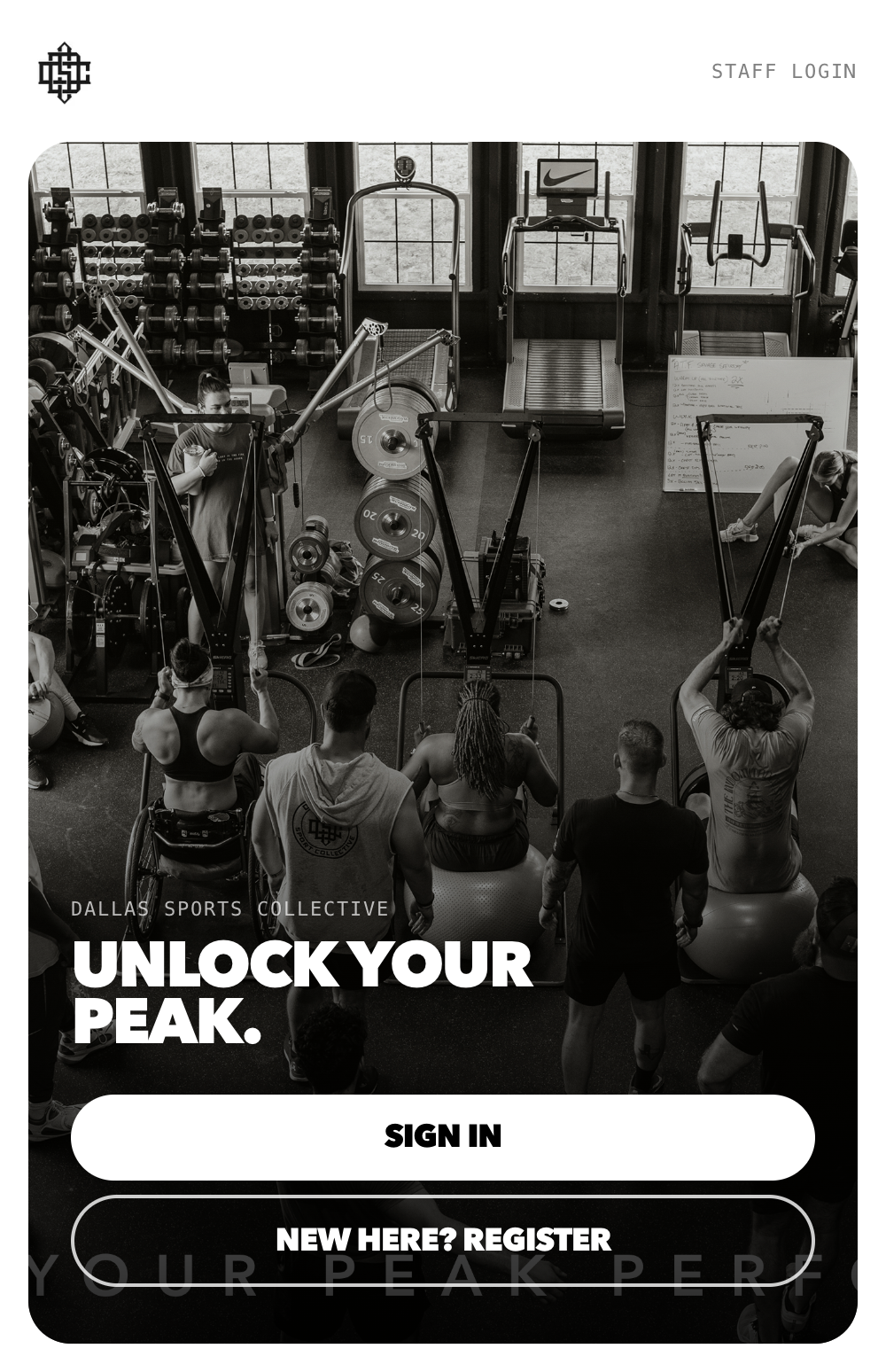
First touchpoint for new and returning athletes. Sign in or register from one screen, branded with the gym’s monogram and hero photo.
 Walkthrough
Run the entire gym by chatting with an AI scheduling assistant. Book sessions, move them around, set recurring weekly slots, handle a packed week in seconds. No forms. No spreadsheets.
As a bonus, athletes can connect their own Claude.ai or ChatGPT to check their schedule and request sessions on their own — the owner still approves every booking.
Mobile screenshots from the live production build at dsc-gym.vercel.app.
First touchpoint for new and returning athletes. Sign in or register from one screen, branded with the gym’s monogram and hero photo.
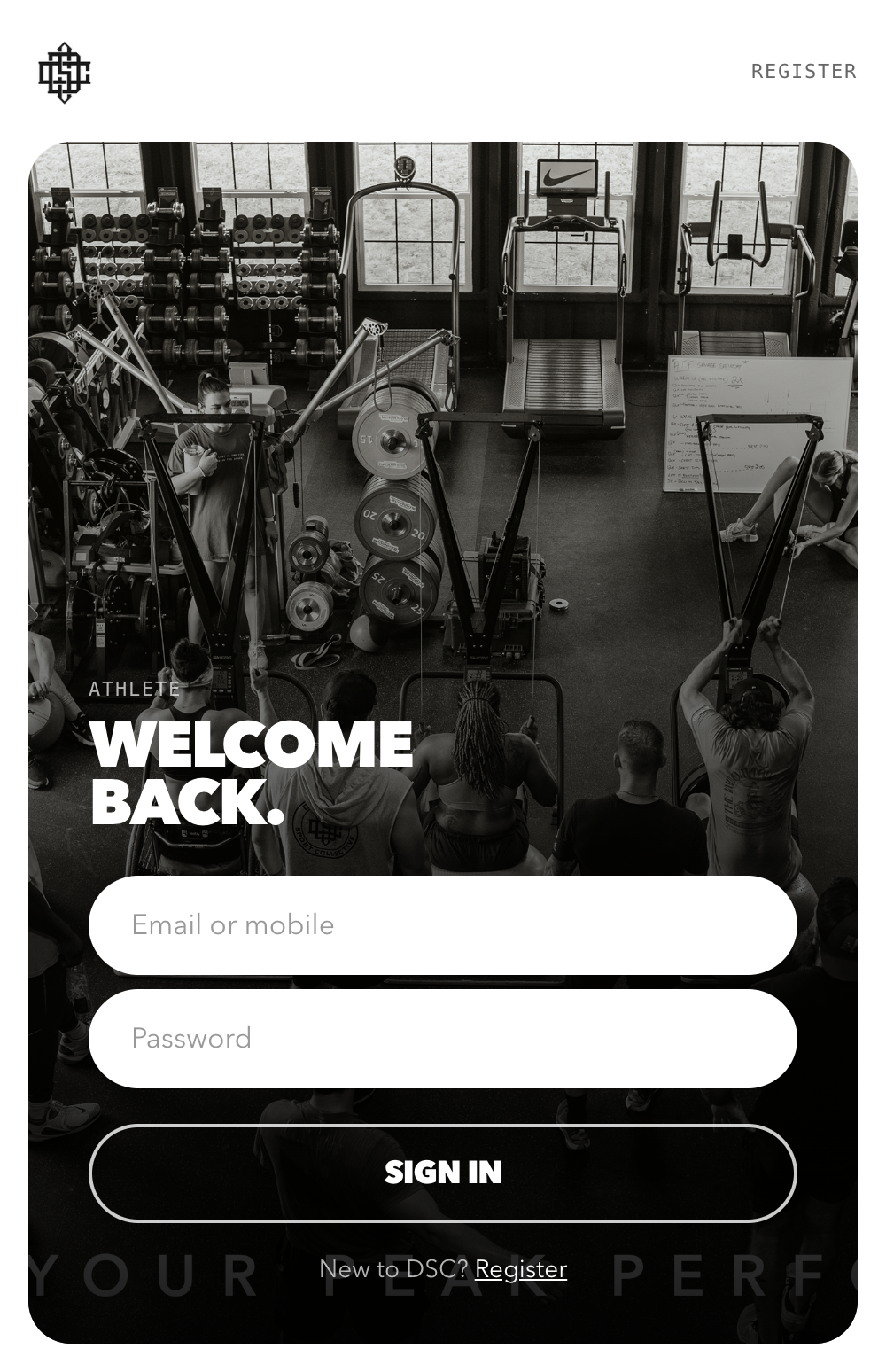
Athletes log in with either their email or their phone number. The form sniffs the input as they type and swaps to a numeric keyboard for phone, an email keyboard for email.
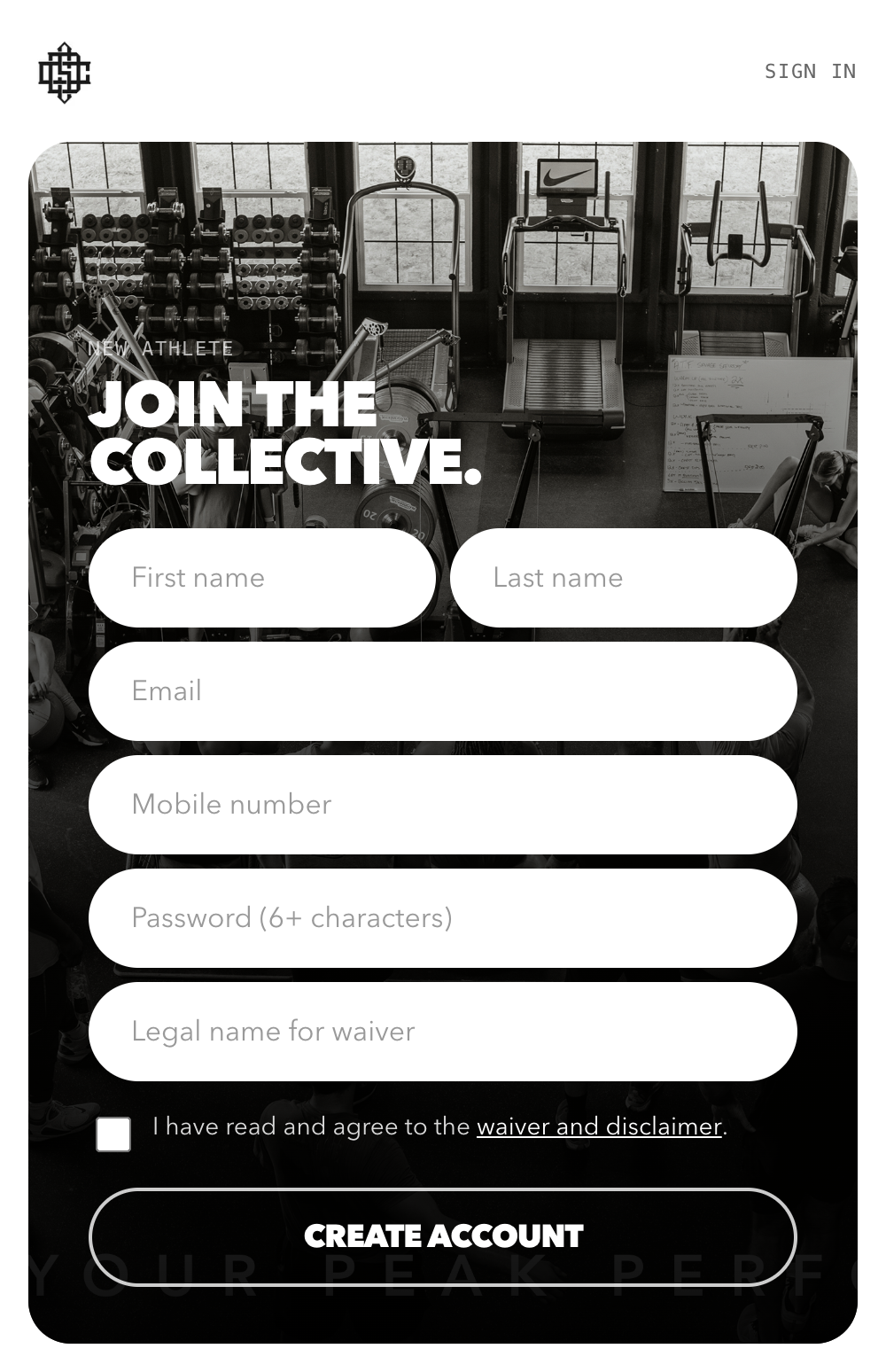
Five fields plus waiver acknowledgement. Email and phone are both required; phone normalizes to E.164 so we can text-or-call later. Waiver is signed at registration time, not deferred.
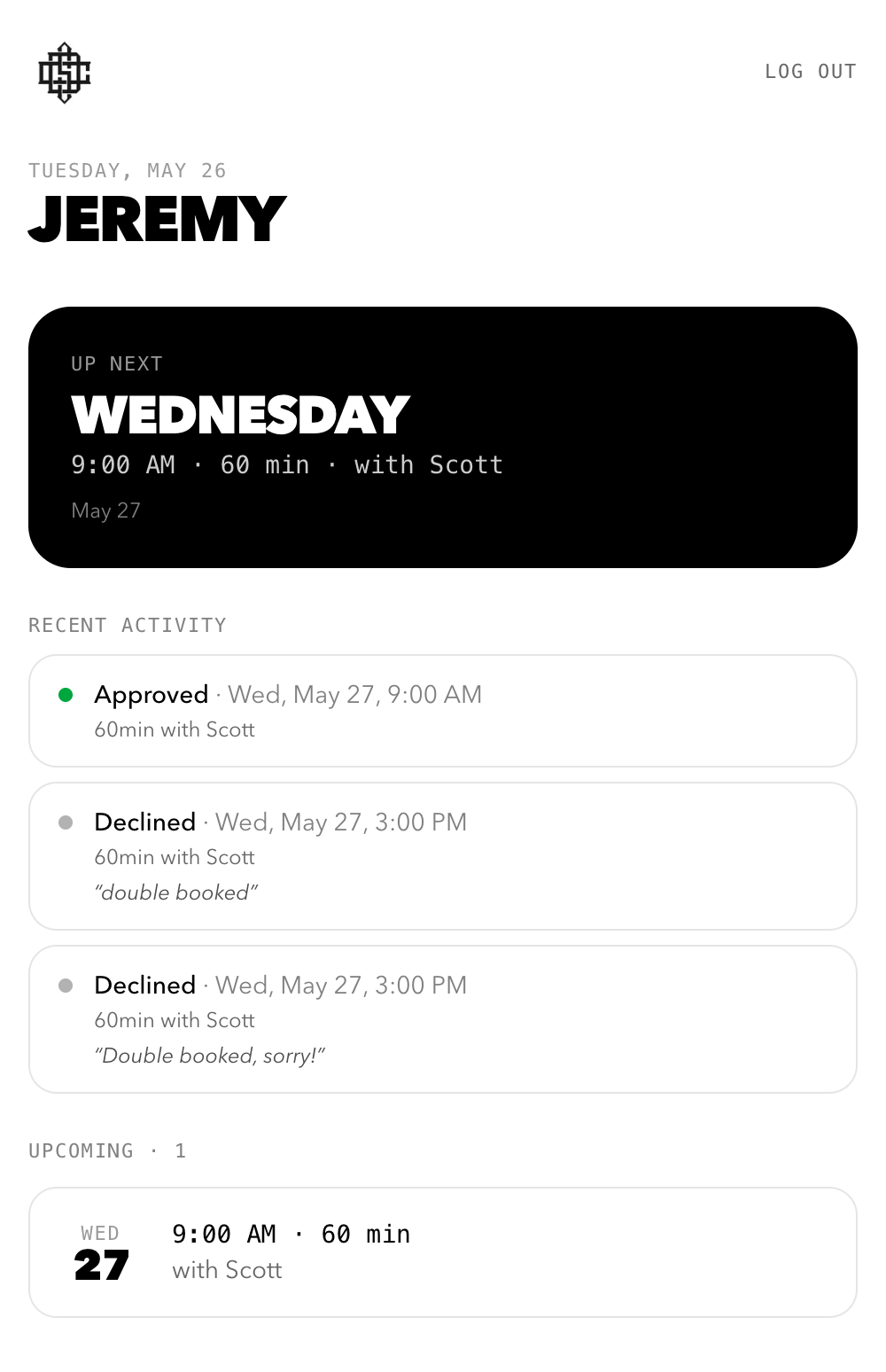
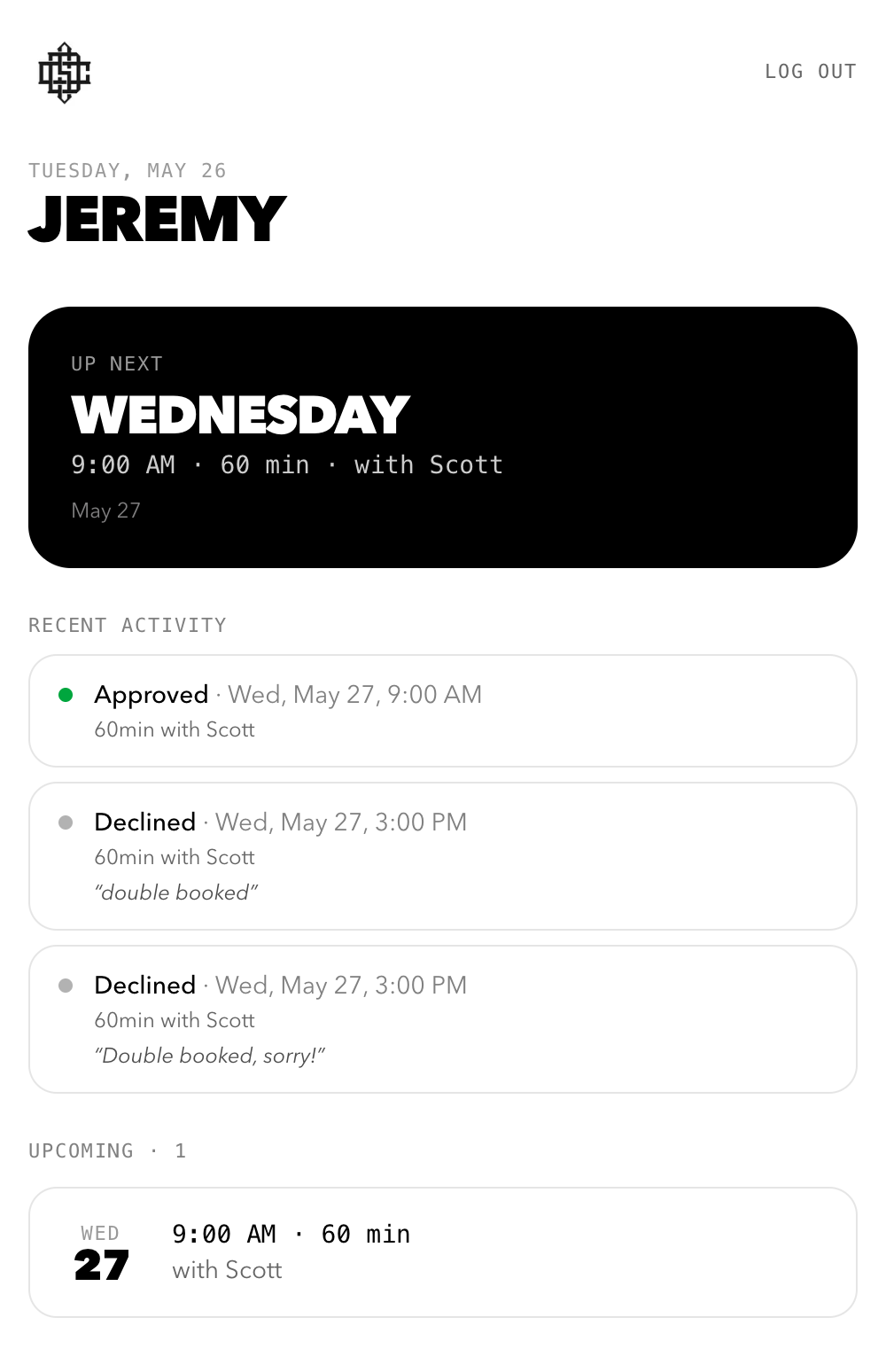
"Up next" hero card surfaces the athlete’s very next session. Recent activity right below it shows approved or declined booking requests, with the trainer’s reason quoted in line.
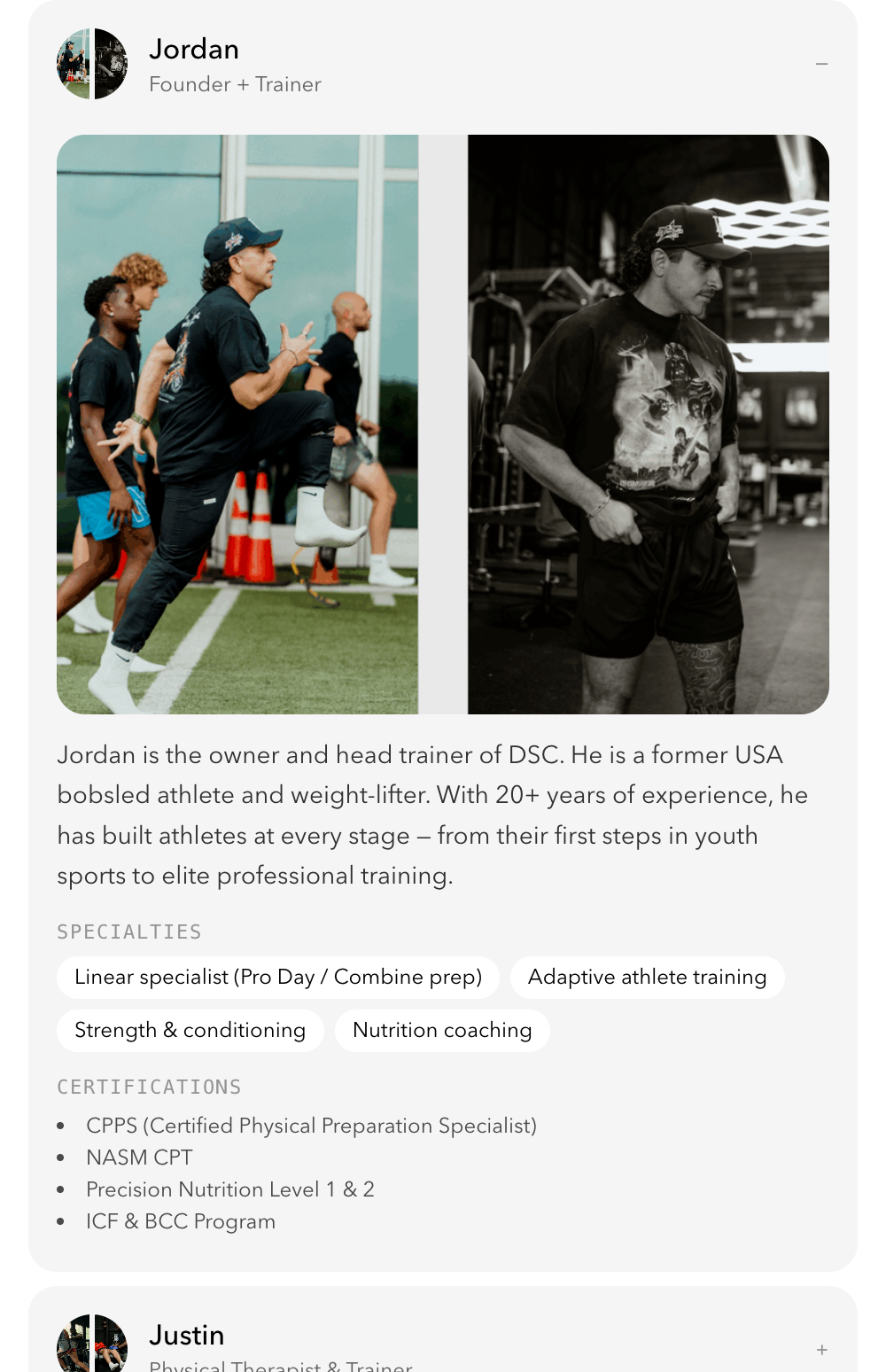
Each trainer’s row expands into a full bio: photo, paragraph, specialty pills, certifications, and education. Same data is also returned by the MCP server so connected AIs can answer "tell me about Jordan" with a real, grounded response.
Athletes paste this MCP URL into Claude.ai or ChatGPT and can manage their schedule through their AI of choice. Owner still approves any new bookings. Status pill shows the real connection state — not whatever the AI vendor’s UI happens to display.
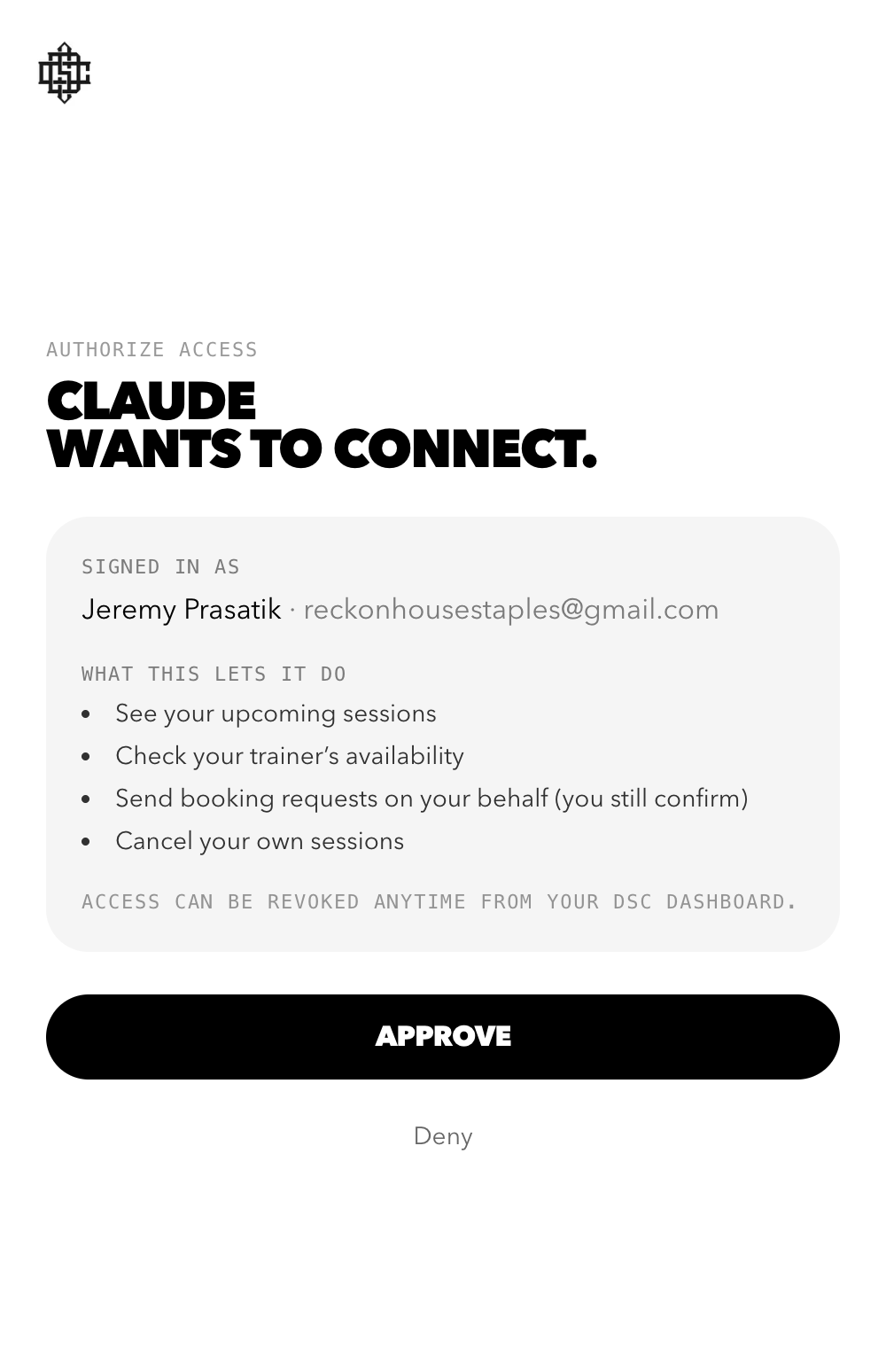
When an athlete connects Claude.ai or ChatGPT, the OAuth flow lands here. Branded under DSC, lists exactly what access the AI is being granted. Approval issues a short-lived bearer token; refresh tokens rotate every cycle.

The complete dashboard end to end: upcoming sessions, recent booking decisions, "Meet the team", "Programs & services", Connect-to-AI, and a footer with mission, hours, locations, and contact links.
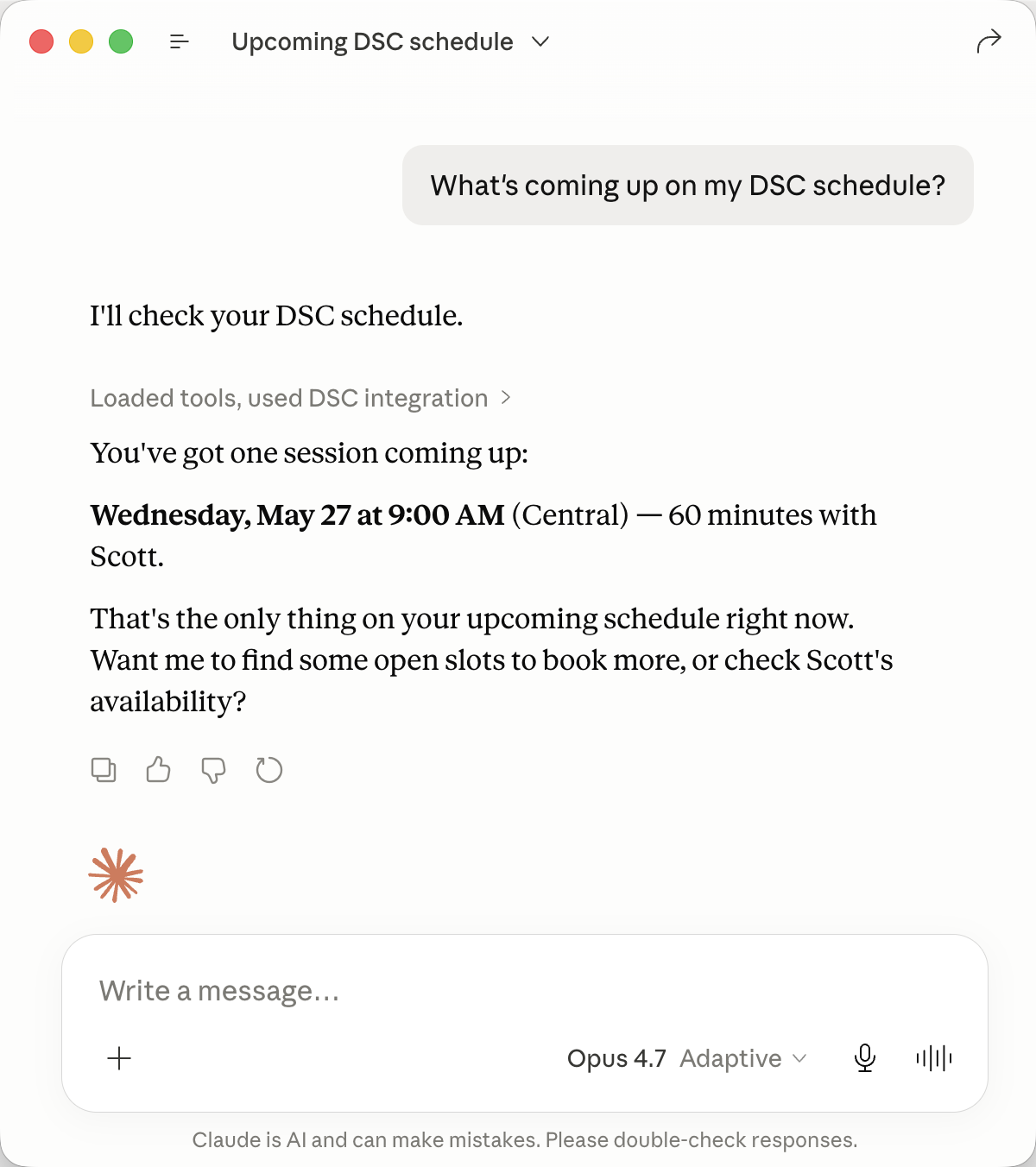
The athlete asks their everyday AI a casual question. Claude calls the my_sessions tool against DSC, gets back the athlete's actual upcoming training, and answers in plain English with the time in Central. The "Loaded tools, used DSC integration" pill is Claude's native indicator that it called a connector.
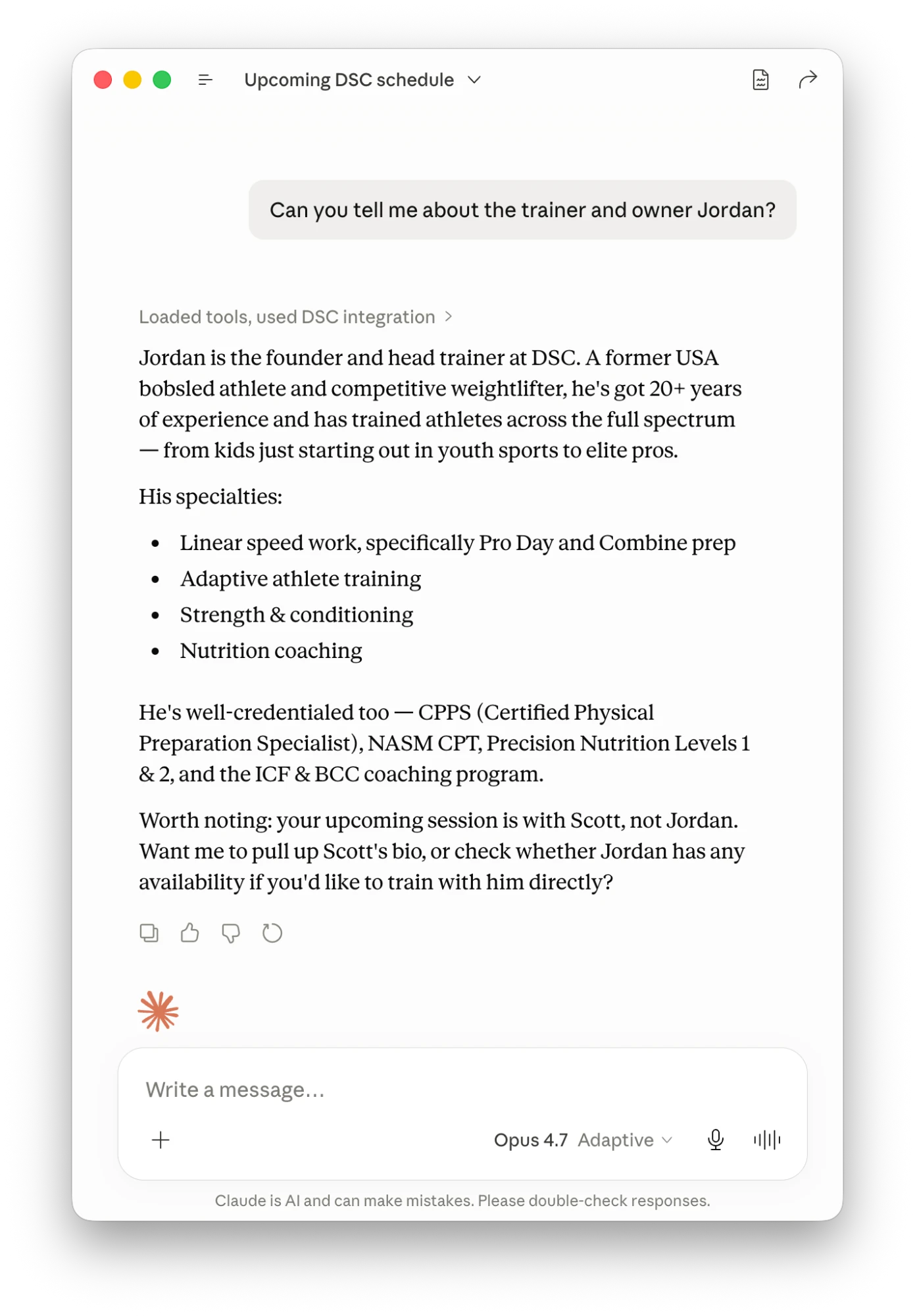
Claude pulls the full trainer profile — bio, specialties, certifications. It also cross-references the athlete's upcoming session and proactively offers a related next action ("your upcoming session is with Scott, not Jordan — want Scott's bio?"). Real reasoning across multiple tool calls.
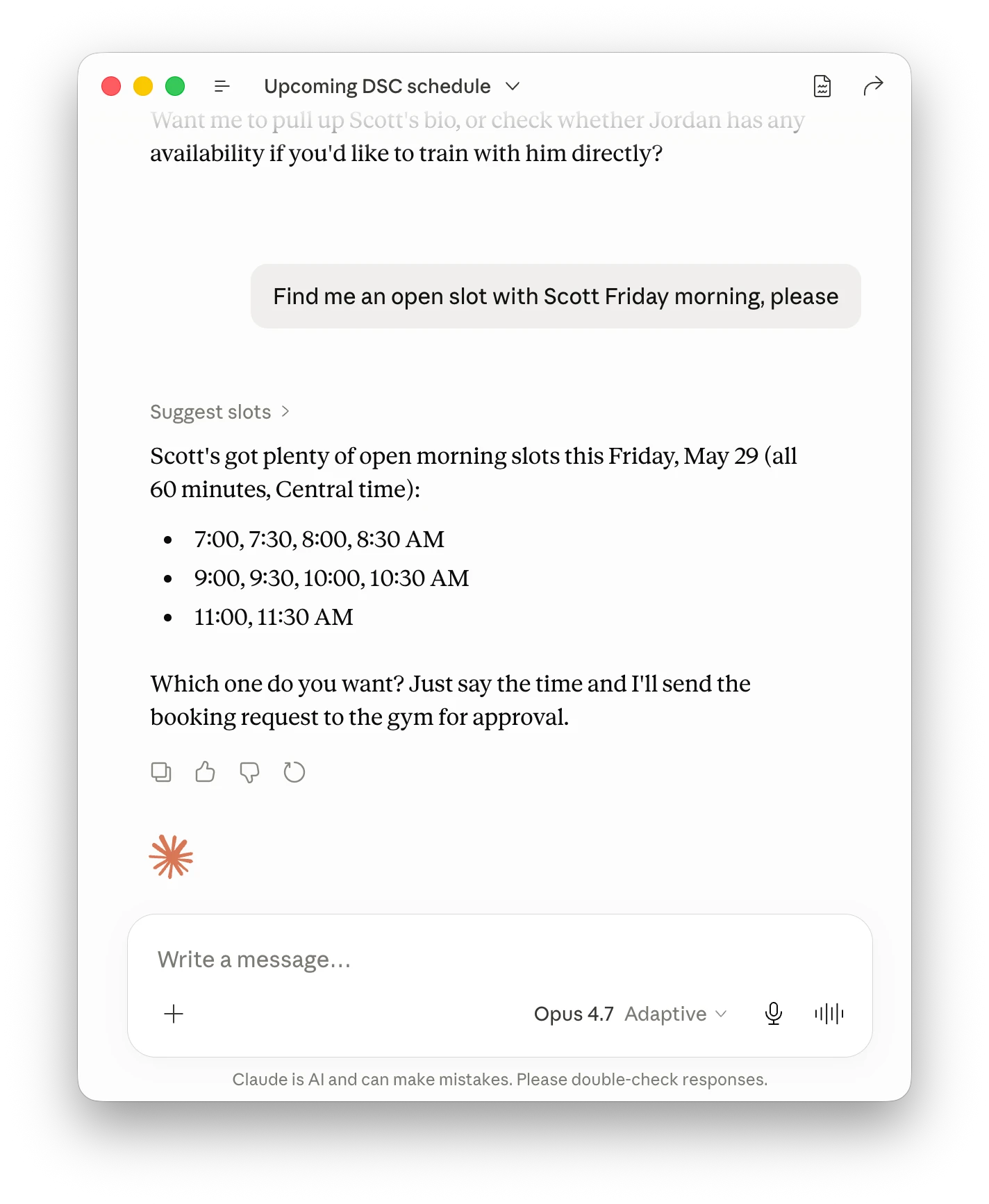
The suggest_slots tool returns every available 60-minute opening with the athlete's trainer on a chosen morning. Claude formats it in clean groupings and ends with the right next-action prompt: "Just say the time and I'll send the booking request to the gym for approval."
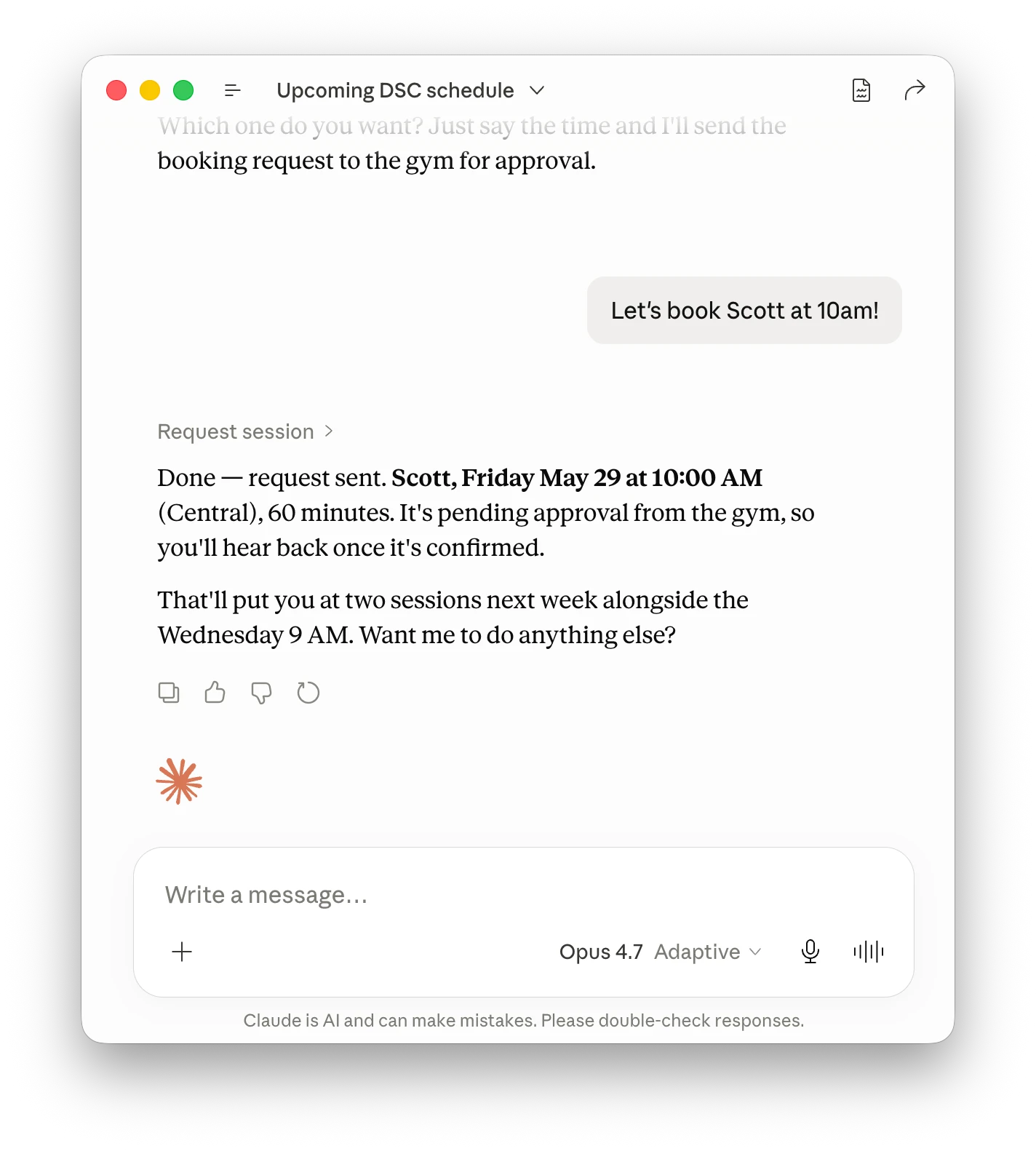
One short reply books it. Claude fires request_session, the server creates a real BookingRequest with status=pending, and Claude confirms with the exact time + duration + a note that the gym still needs to approve. Notice the contextual touch: "That'll put you at two sessions next week alongside the Wednesday 9 AM" — Claude remembered the existing session from earlier in the conversation.
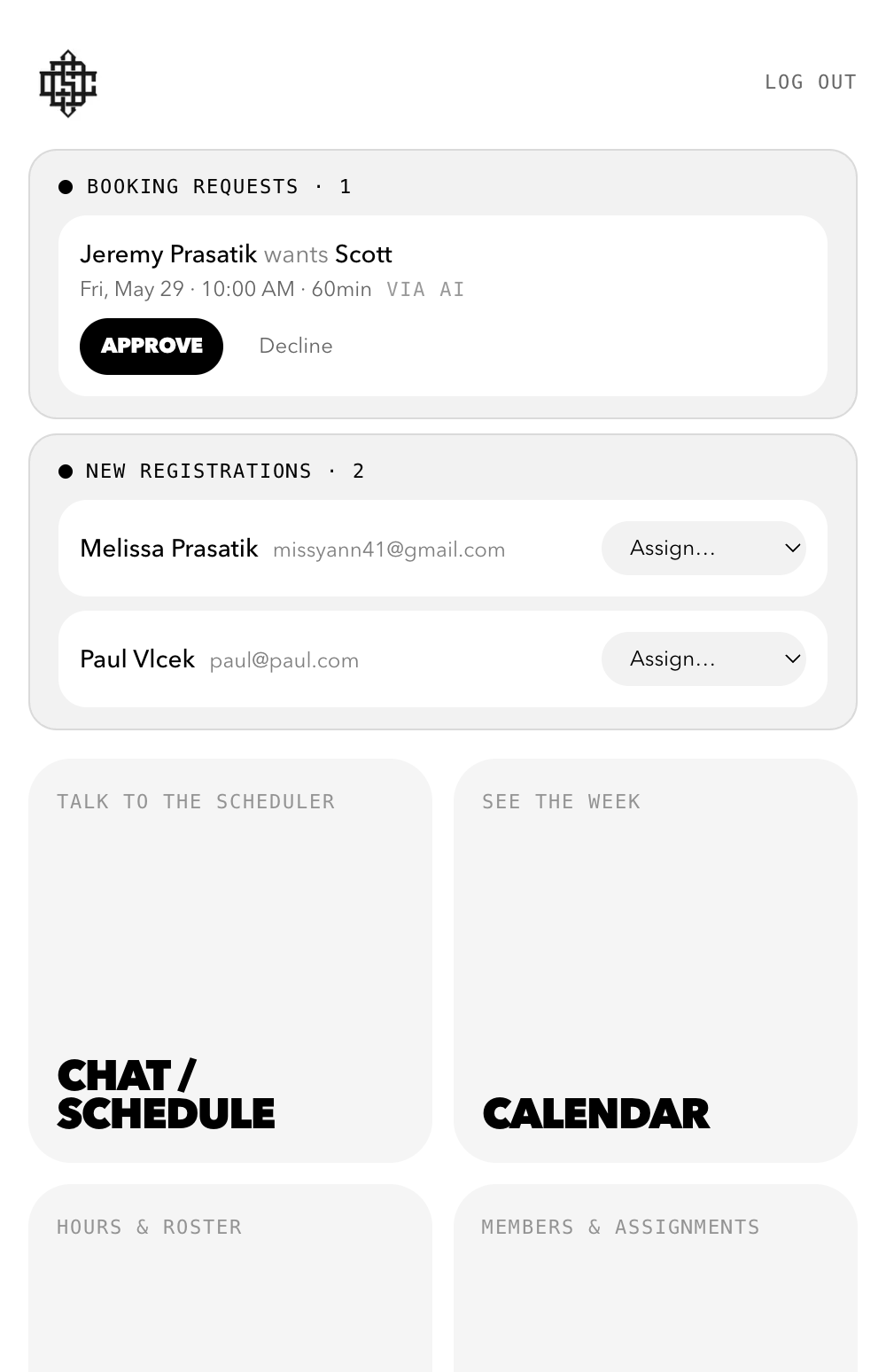
The request from Claude lands in the owner's queue within seconds, tagged "VIA AI" so they know it came from an athlete's connected assistant. One tap to Approve or Decline. The engine re-validates on approve — even AI-initiated bookings can't bypass conflict rules.
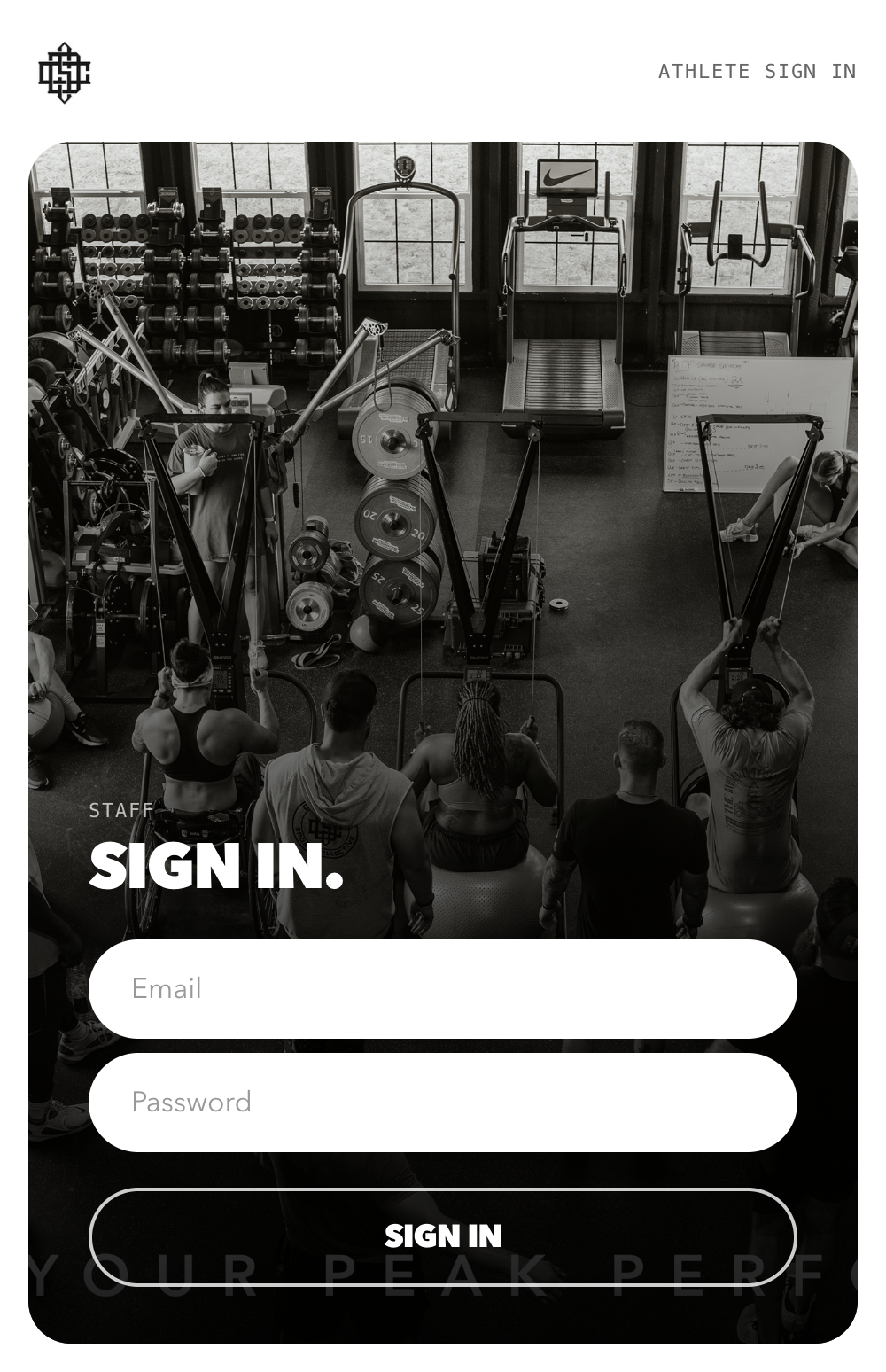
Owner and trainers sign in here. Same brand language as the athlete side but visually distinct so the two surfaces don’t bleed together.
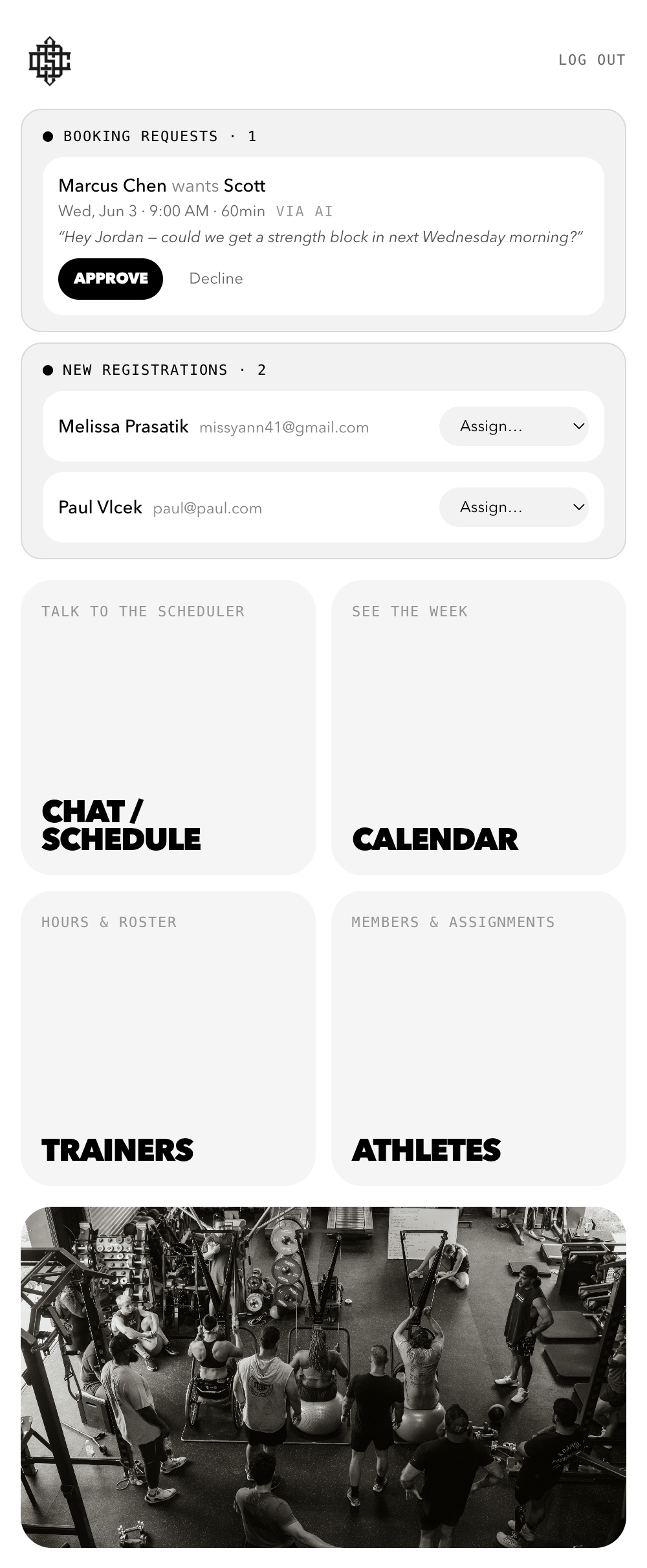
Inbound work shows up at the top: booking requests from AIs (with the athlete’s note quoted), new registrations awaiting trainer assignment, walk-ins. Below that, four action cards lead into the main workspaces.
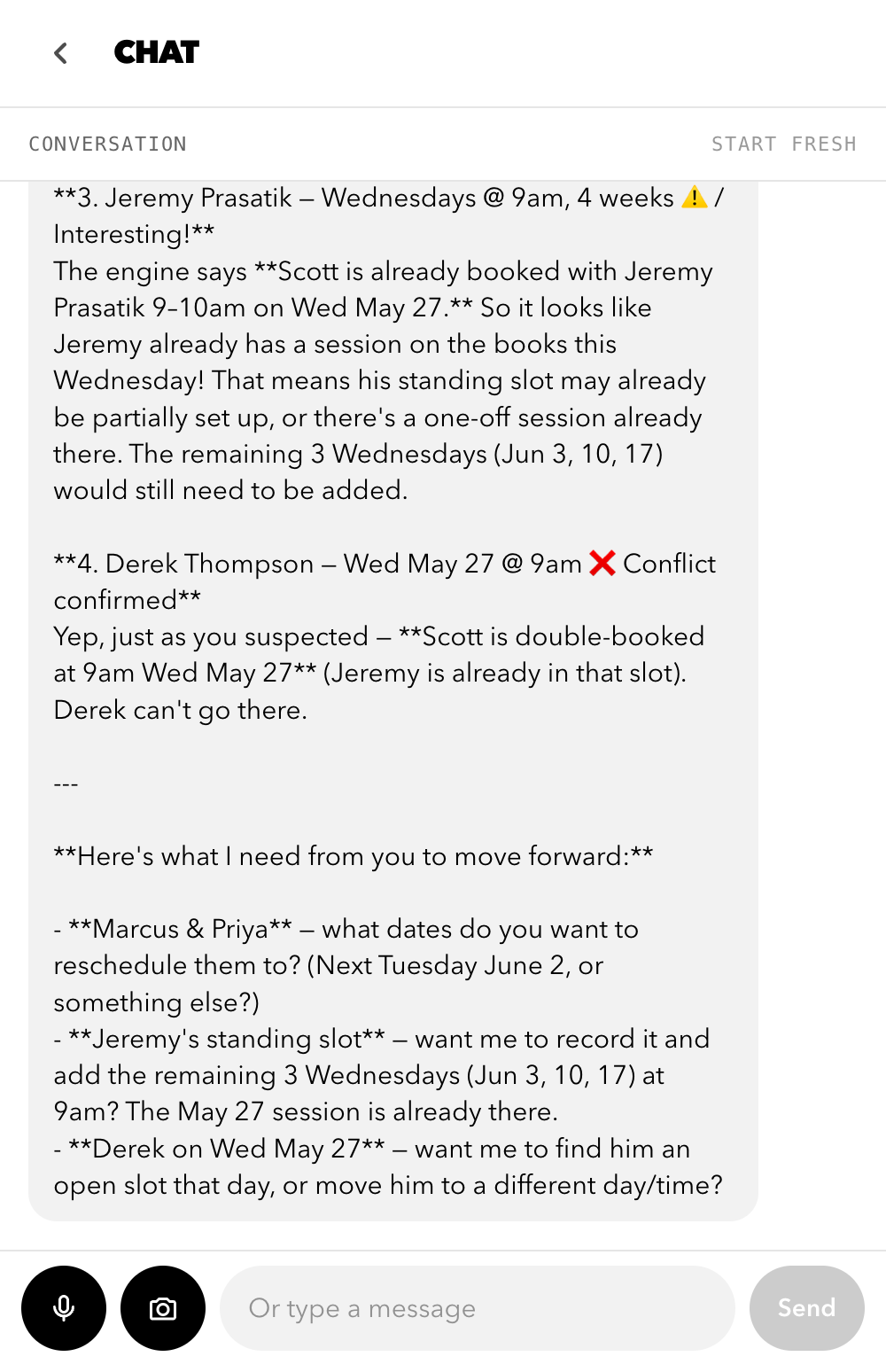
The owner can describe a week’s worth of scheduling in natural language and the AI handles it. Here it parallelizes athlete lookups across multiple tool calls, catches that two requested times were already in the past, detects the Derek/Jeremy conflict, and stops to ask for direction before committing anything. Every booking decision flows through the engine — the AI is the interface, the engine is the authority.
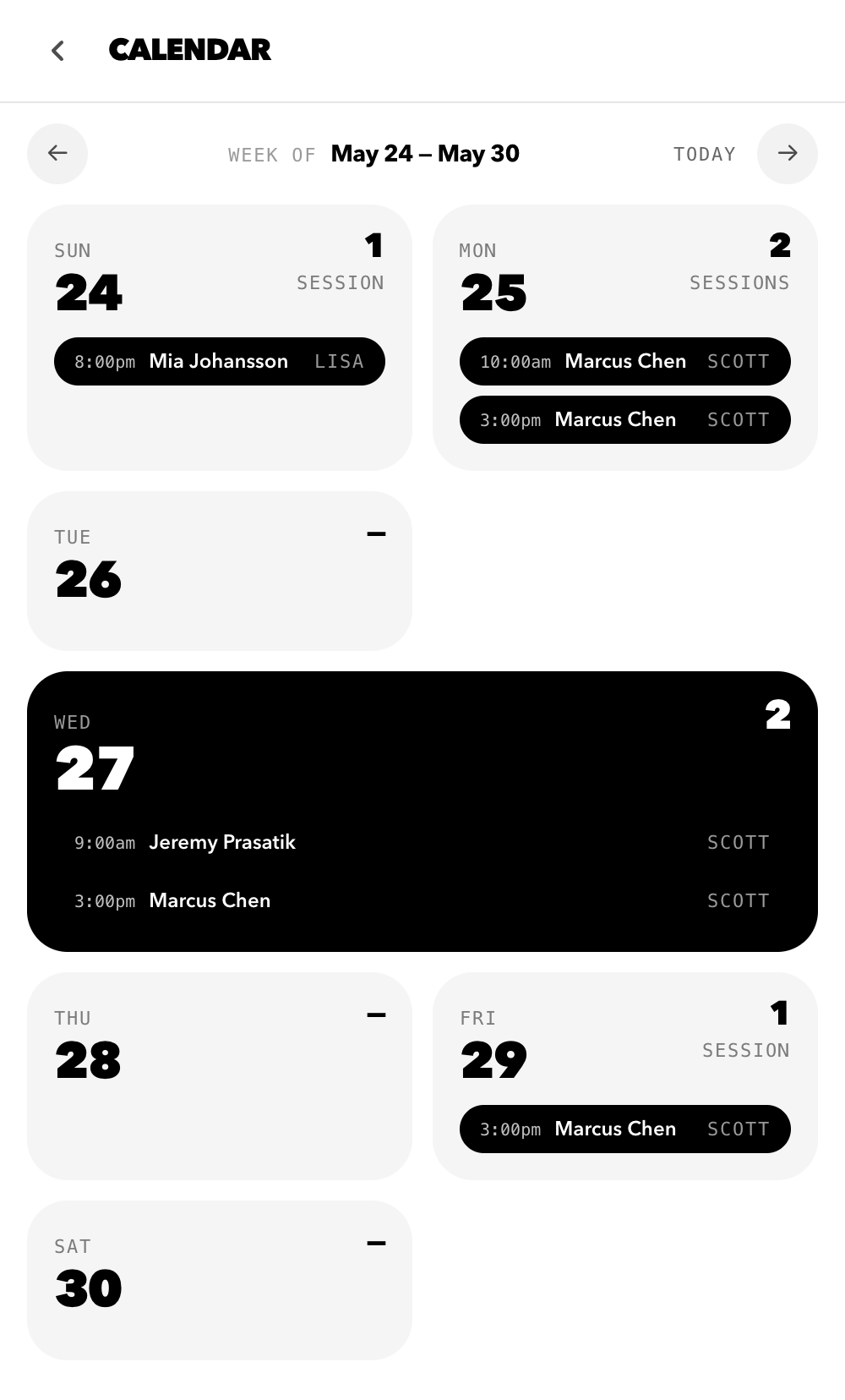
One card per day of the current week. Each card previews the day’s sessions. Today’s card is dark; rest are the brand’s faint grey. Tap any card to drill into the day.
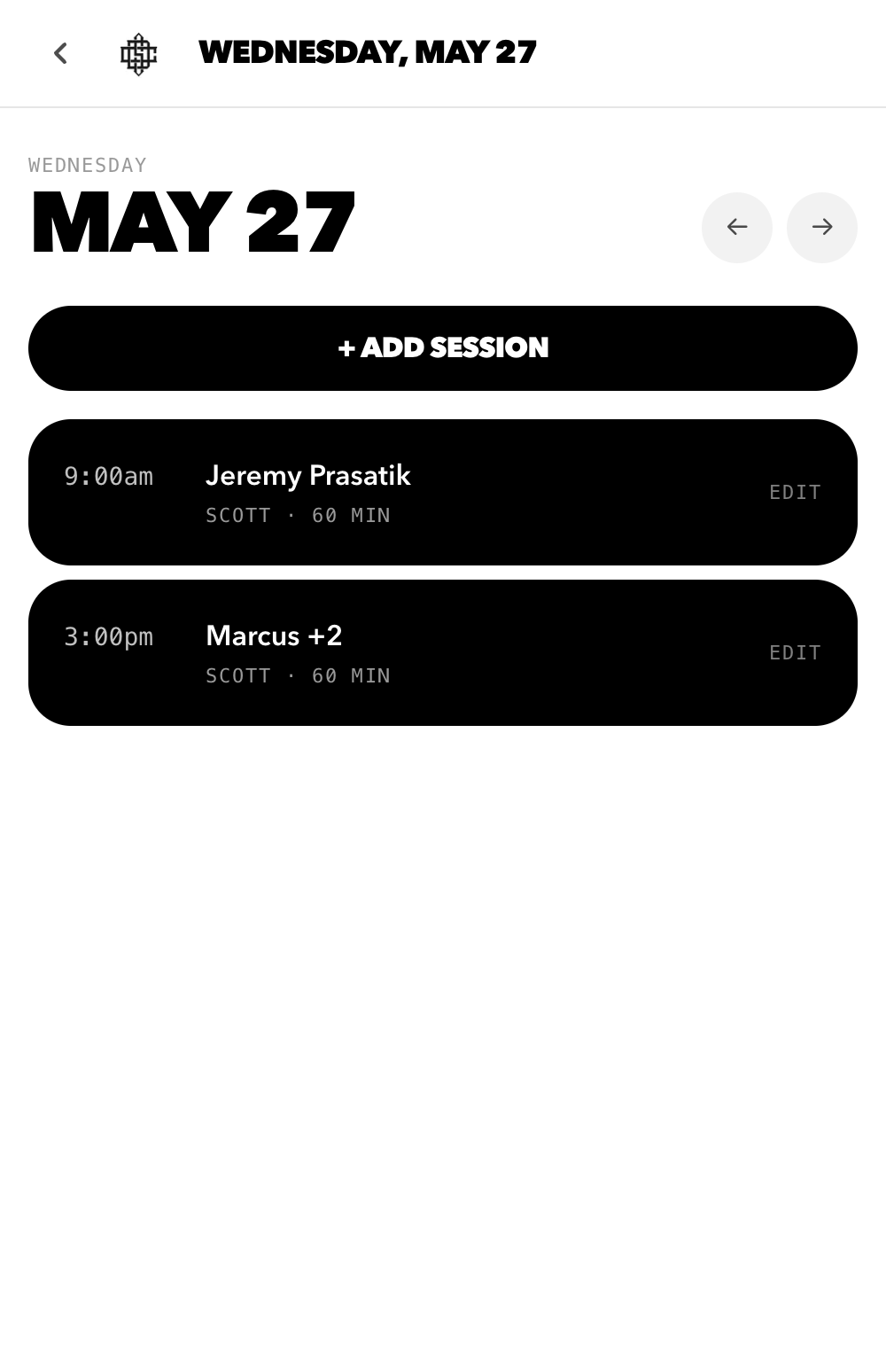
Full day at a glance. Tap any session to edit (move, change trainer, cancel) through a slide-up sheet. All edits flow through the engine and re-validate. Group sessions show their attendees as "Name +N".
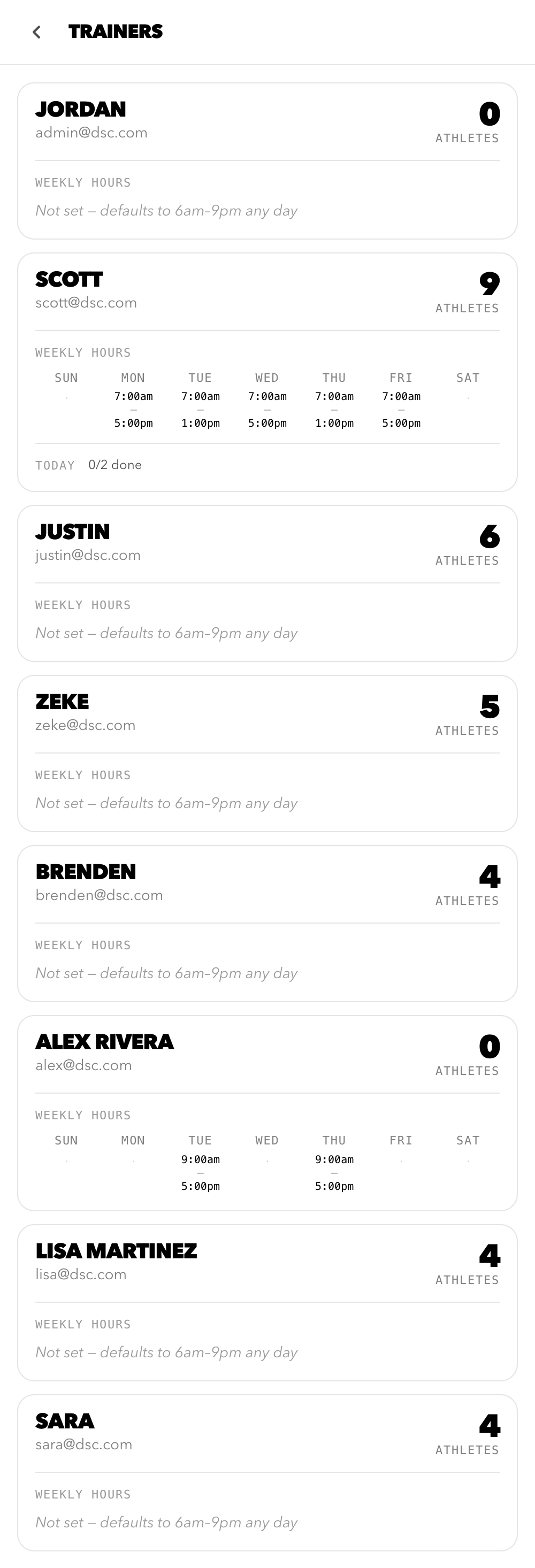
Each trainer’s weekly hours, athlete count, and today’s progress. Editing hours updates the engine’s availability windows immediately — the next booking attempt for that trainer respects the new schedule.
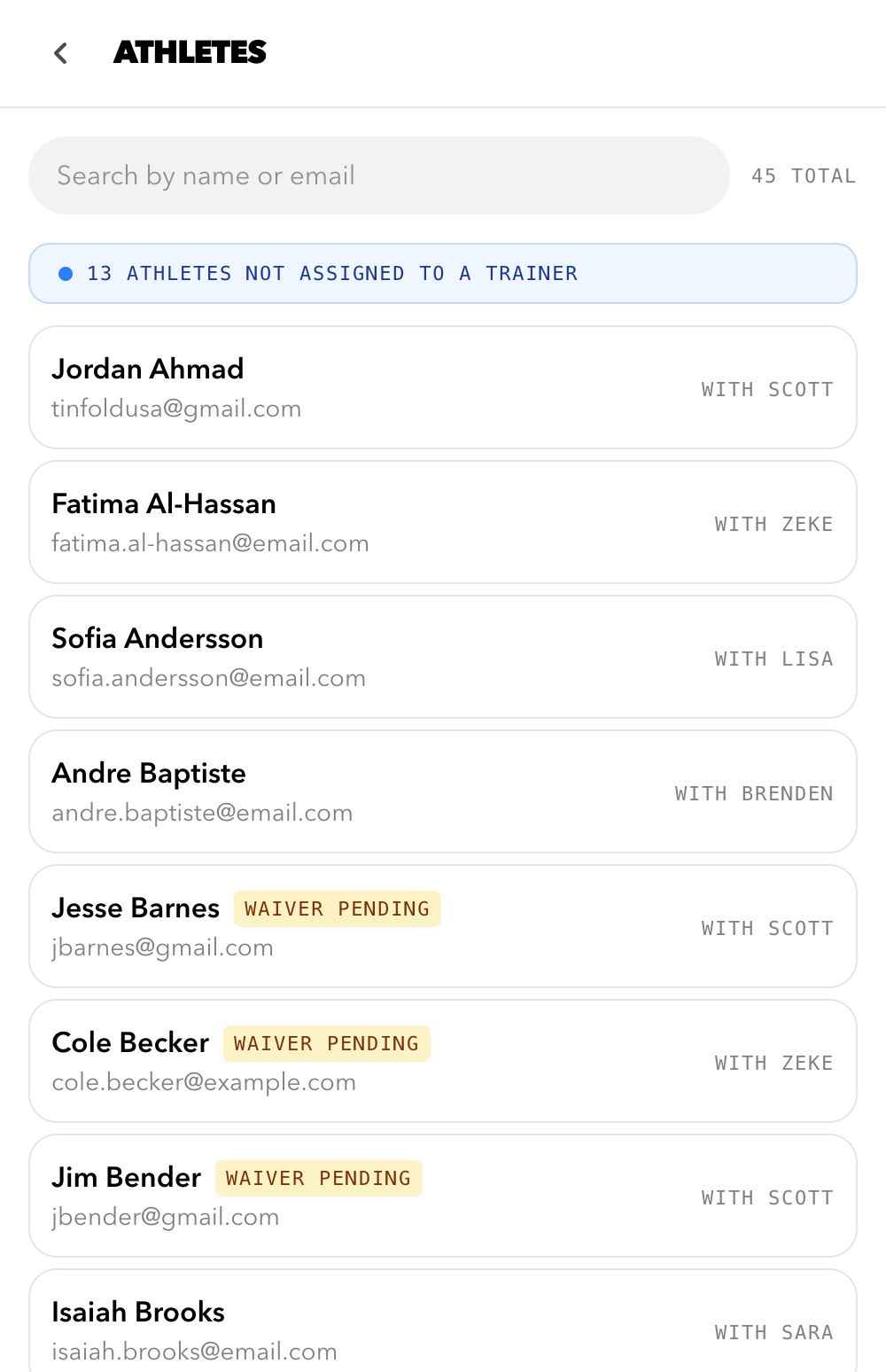
Searchable roster. Unassigned athletes are flagged at the top of the list so the owner can quickly route new registrations to a trainer. Tap an athlete to open their detail page.
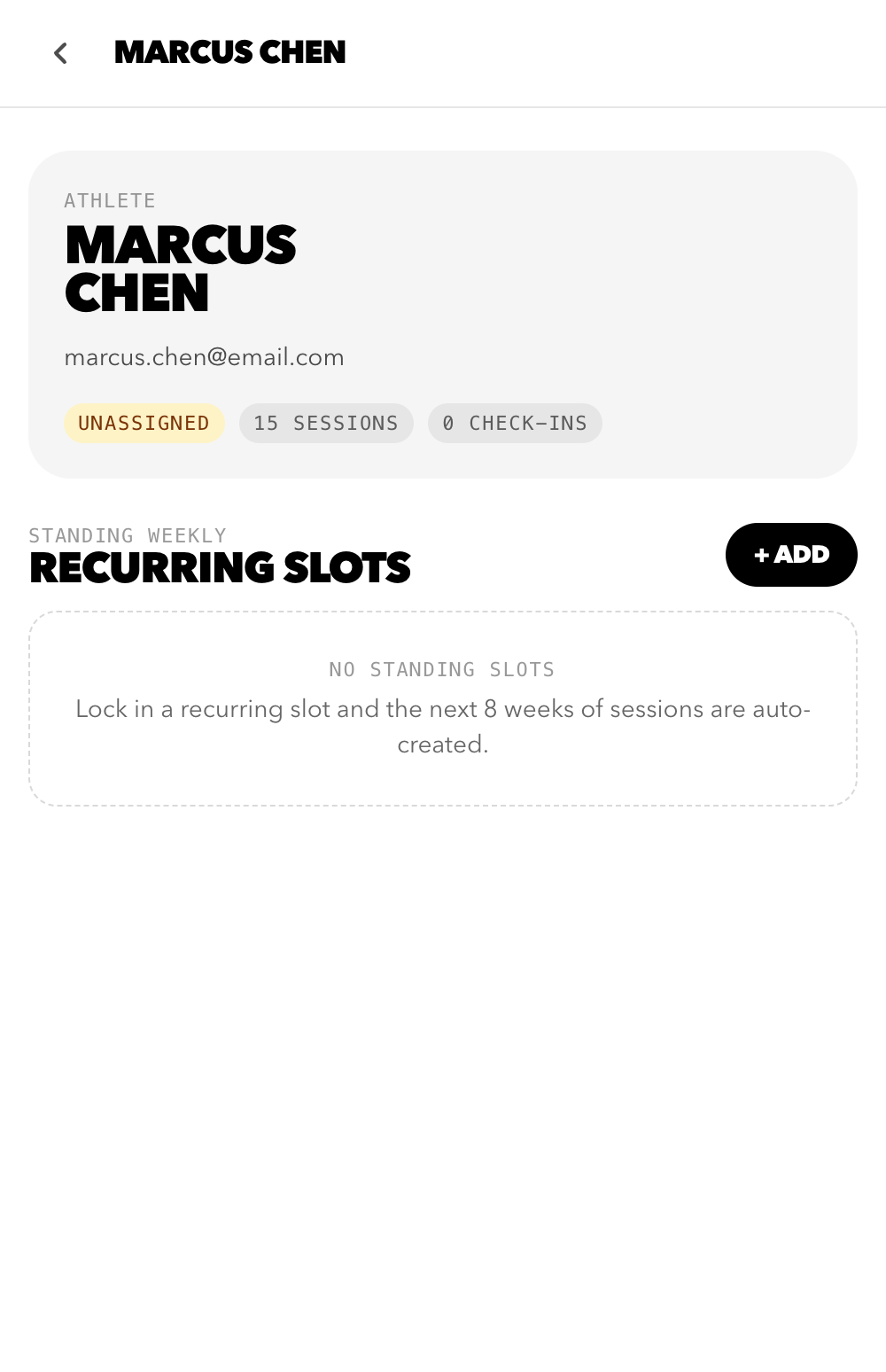
Individual athlete view. Identity card, trainer assignment, session and check-in counts. "Recurring slots" lets the owner lock in a standing weekly time (e.g. Jeremy every Wednesday 9am with Scott) and auto-materialize the next 8 weeks of sessions — engine-validated, conflict-aware.
Every booking — whether it came from the owner’s chat, the athlete’s connected AI, or a tap-to-edit on the calendar — flows through a single deterministic scheduling engine that checks trainer availability, double-bookings, gym floor cap, allowed durations, and cancellation rules. The AIs are the interface; the engine is the authority.